
How to Share and Embed a 360are Virtual Tour
Once your tour is ready, you can send visitors a direct link or display the tour inside another website using an iframe. A link opens the tour in its own page; an embed lets visitors explore it within your website.
Before You Share
Finish your scene connections, save your changes, and check the tour's visibility. Publishing a multi-scene virtual tour requires PLUS or higher. See current plans and saving and publishing options.
A draft is for editing and owner preview, not public delivery. Copying a link does not publish it. For private projects, confirm the intended viewing behavior before sharing; do not assume that a private designation means password protection.
Share From the Tour Page
You can copy sharing details directly from the tour viewer without returning to All Assets.
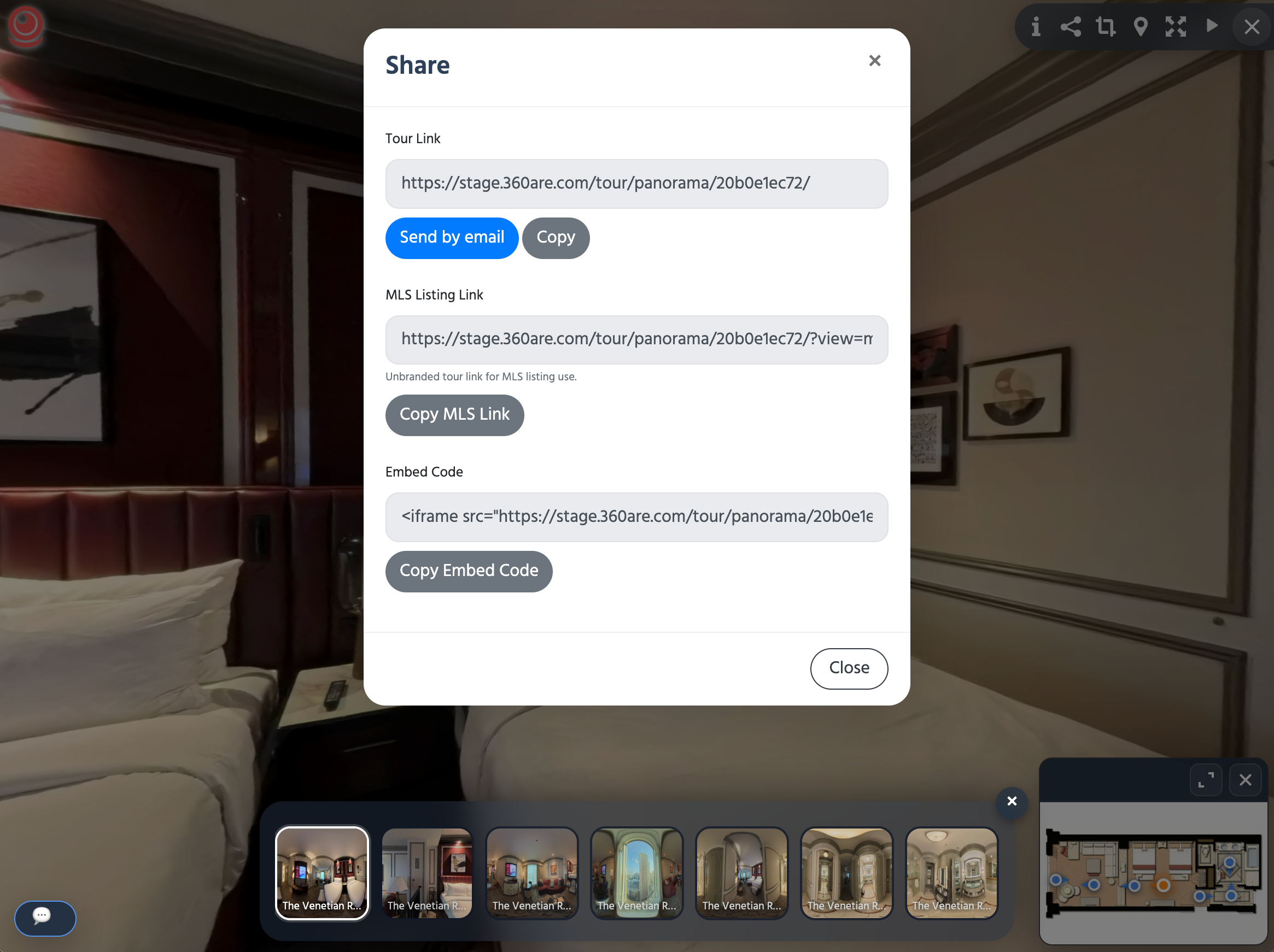
- Open the tour's normal link in its own browser tab.
- Select Share in the tour controls.
- Choose the option you need in the Share window:
| What you need | Where to copy it | How to use it |
|---|---|---|
| Regular tour link | Under Tour Link, select Copy. | Paste it into an email, message, social post, or website link. |
| Unbranded MLS link | Under MLS Listing Link, select Copy MLS Link. | Give this link to the agent or listing administrator after checking the MLS requirements. |
| Website embed | Under Embed Code, select Copy Embed Code. | Paste the iframe code into an HTML or embed block on the destination website. |
The MLS Listing Link option is available for tours owned by BUSINESS and higher accounts. See branded and unbranded tour delivery for what the MLS presentation hides and what to check before sending it.
After copying, paste the result into its destination and check that it is the link or code you intended. The embed code uses the normal tour presentation; use Copy MLS Link when you need the unbranded address.
If you open Share while viewing a tour embedded in another website, Tour Link may point to that containing webpage. Open the tour in its own tab first when you want to copy the direct 360are tour address.
You can also use the admin-area options below.
Copy a Tour Link
- Sign In and open All Assets.
- Find the tour you want to share.
- Open the three-dot action menu for that asset.
- Select Copy Link.
- Paste the copied link into your email, message, property page, or social post.
A tour link looks like this:
https://www.360are.com/tour/panorama/20b0e1ec72/
This is an example address. Copy the link for your own tour rather than reusing the example ID. For email and social posts, use the link rather than iframe code.
Copy the Embed Code
- In All Assets, open the tour's three-dot action menu.
- Select Copy Embed Code.
- Open the destination website's editor.
- Paste the code into an HTML or embed block that accepts iframes.
- Save the website page and open its visitor-facing version to check the result.
If someone else manages the website, send them the copied code and explain which page should contain the tour.
Here is an example with an accessible title and a 500-pixel display height:
<iframe
  src="https://www.360are.com/tour/panorama/20b0e1ec72/"
  title="Explore the property in a 360° virtual tour"
  width="100%"
  height="500"
  style="border: 0;"
  allowfullscreen>
</iframe>
Replace the src value with your tour's production link and make the title describe your property or location. The example uses www.360are.com; use your actual production address when delivering to clients.
Adjust the Display Size
The iframe's width="100%" fills the available width of its website container. The height="500" sets its height in pixels. You can change the height to fit your layout; these are HTML settings on the destination website.
Test the page on a phone as well as a desktop. Check that visitors can look around, change rooms, and reach the tour controls. A narrow website column can make the viewer difficult to use even when the iframe itself is working.
Check the Visitor Experience
Before delivery:
- Open the copied link in a browser window where you are not signed in to 360are.
- Check the first scene, room transitions, and any floor-plan navigation.
- Open the published website page containing the embed.
- Confirm that the correct tour appears and the controls are usable.
- For MLS delivery, use the dedicated unbranded MLS link.
A website editor may remove or block iframe code. If the tour works by direct link but not inside the website, ask the website administrator to check its embed support. If you still need help, use the 360are contact form and include both the tour URL and the page where you embedded it.