
Virtual Tour Hotspots: Icons, Colors, and Size
A door invites visitors into the next room. Stairs point upstairs. A pool icon makes an amenity easy to find. Choose a hotspot that hints at what comes next, then adjust its color and size so it stands out in your panorama.
360are supports navigation hotspots that connect scenes and information hotspots that add text, video, webpages, or an action link.
Choose an Icon That Tells a Story
The navigation gallery includes pins, floor circles, arrows, doors, stairs, elevators, outdoor spaces, and amenities. Here are a few of the available choices:












- Guide the route: use doors, entrance symbols, arrows, stairs, or elevators to make the next scene clear.
- Highlight a destination: try Garden, Balcony, Pool, Parking, Reception, Restaurant, or Restroom.
- Offer another perspective: use Drone, Panorama, or 360 View when linking to a matching scene.
An icon describes the connection; it does not create a new capability. For example, a Drone icon needs an aerial scene to link to. Use Accessible Route only when the route actually supports that description.
Make It Easy to Spot
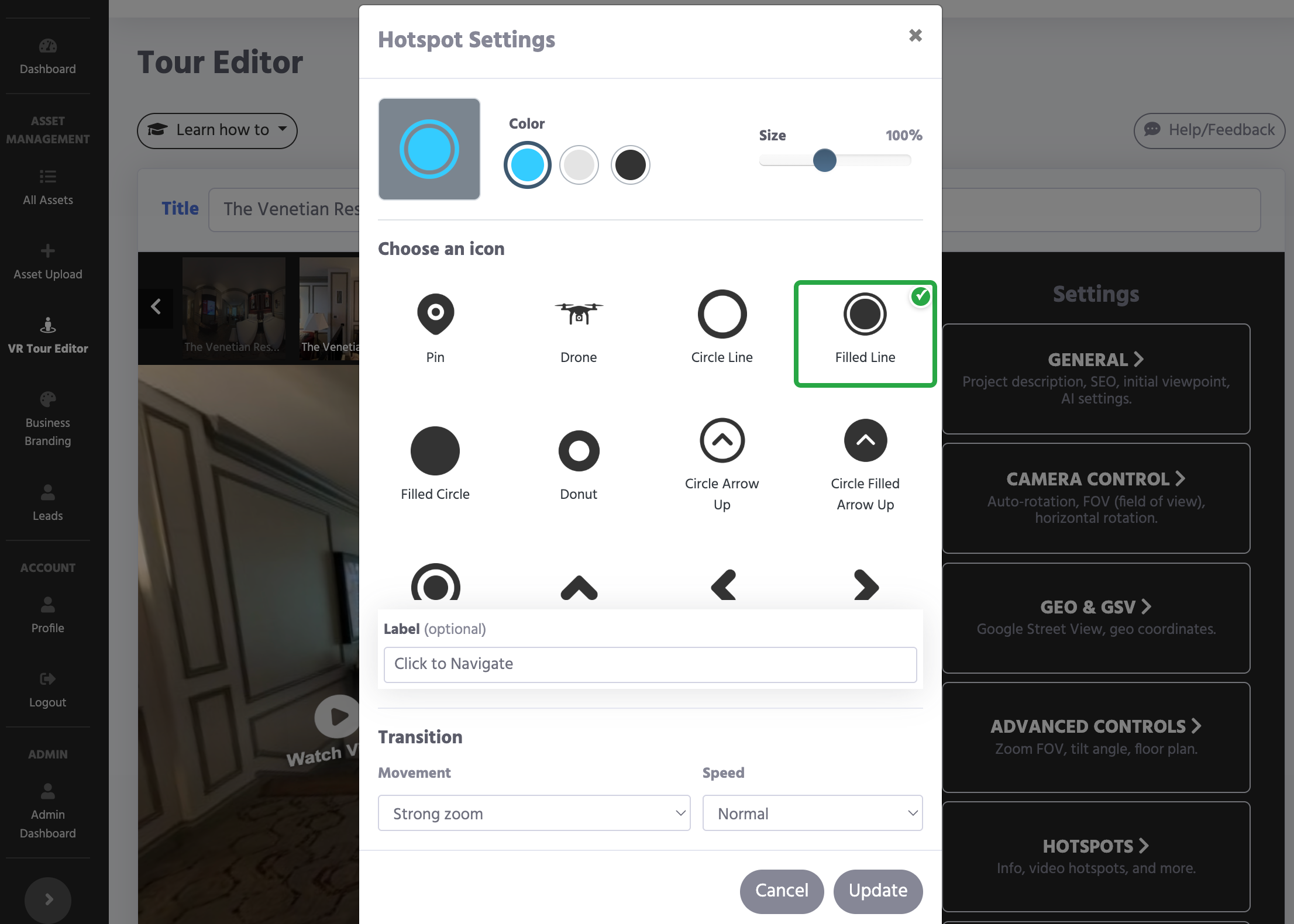
In Hotspot Settings, choose an icon, then customize its appearance:
| Control | What you can change |
|---|---|
| Color | Blue, Light, or Dark. Pick the option that contrasts with the area behind the hotspot. |
| Size | 25–200%, in 5% steps. Start at 100%, then adjust for visibility. |
| Label | An optional name of up to 25 characters, such as “To the garden” or “Upstairs.” |


The icon gallery displays dark previews; use Color to choose the version for your tour. Keep important routes easy to tap on a phone without covering the feature you want visitors to see.
Add or Update a Navigation Hotspot
- Open your tour in All Assets and select the source scene.
- Choose the destination connection and open Add Hotspot or Edit Hotspot from its connection menu.
- Choose the icon, color, size, and optional label in Hotspot Settings.
- For a new hotspot, select Next: Place Hotspot and position it in the panorama. For an existing hotspot, apply your changes with Update.
- Save the tour and preview the connection on desktop and mobile.
You can also open an existing hotspot's settings from its icon in the editor. For the full scene-connection workflow, follow How to Create a Virtual Tour.
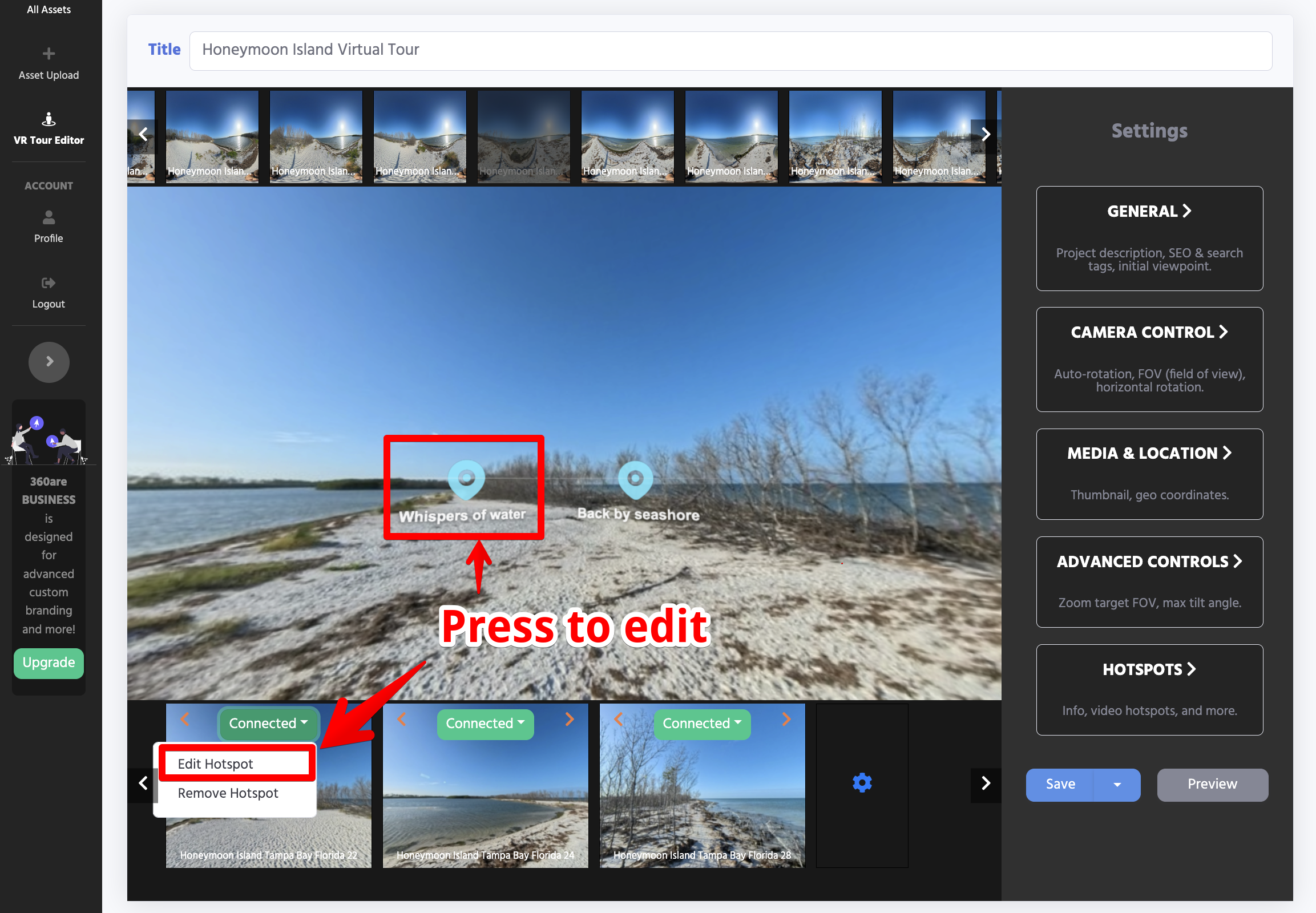
Want a softer scene change? The same popup includes Movement (Fade only, Gentle zoom, Standard zoom, or Strong zoom) and Speed (Fast, Normal, or Slow). These apply to the individual connection. See Scene Transition Settings for defaults and saving details.
Add Information Without Another Scene
Information hotspots help visitors explore the details of a space without moving to another scene. Use a popup to explain what they are looking at, play a video, or show an embedded page; use a Redirect when the next step is an external link.
| Type in the editor | What to enter | Try it for |
|---|---|---|
| Information | Text or simple HTML in HTML/Text. | Pool hours, parking instructions, room features, or an artwork description. |
| Video | A YouTube URL. | A welcome message, product demonstration, or short walkthrough. |
| Webpage | An External Website URL that permits embedding. | A restaurant menu, map, or booking page. |
| Redirect | A Redirect URL. | “Book now,” “View product,” or “Visit website.” |
Match the Icon to the Content




The information picker has its own icon groups: Information, Restaurant, Restroom, Parking, and Pool for details; a play icon for video; link icons for redirects; and a window icon for webpages. Choose an optional label of up to 25 characters, such as “Pool hours” or “Watch the welcome.”
An amenity icon can have different purposes: a Pool navigation hotspot takes visitors to the pool scene, while a Pool information hotspot explains its hours or facilities. Choose the hotspot type for the action you want.
Place, Save, and Test
- Open the information-hotspot picker in the scene you want to annotate.
- Choose the content type and icon, then fill in the matching text or URL field.
- Add a short label and select Next: Place Hotspot to position it beside the relevant feature.
- Save the tour and open the hotspot in Preview. Check the content and any destination links on a phone too.
To revise existing content, open the hotspot's settings, make your changes, select Update, and save the tour.
Keep text short and use only simple HTML—no scripts, iframe code, or styles in the HTML/Text field. For embedded content, choose Webpage and enter the page URL instead. If that website blocks embedding, use Redirect so visitors can open it separately.
Use a few well-placed hotspots, clear labels, and consistent symbols. For an overview of the route, add an interactive floor-plan map.